Small Keyboard Guide
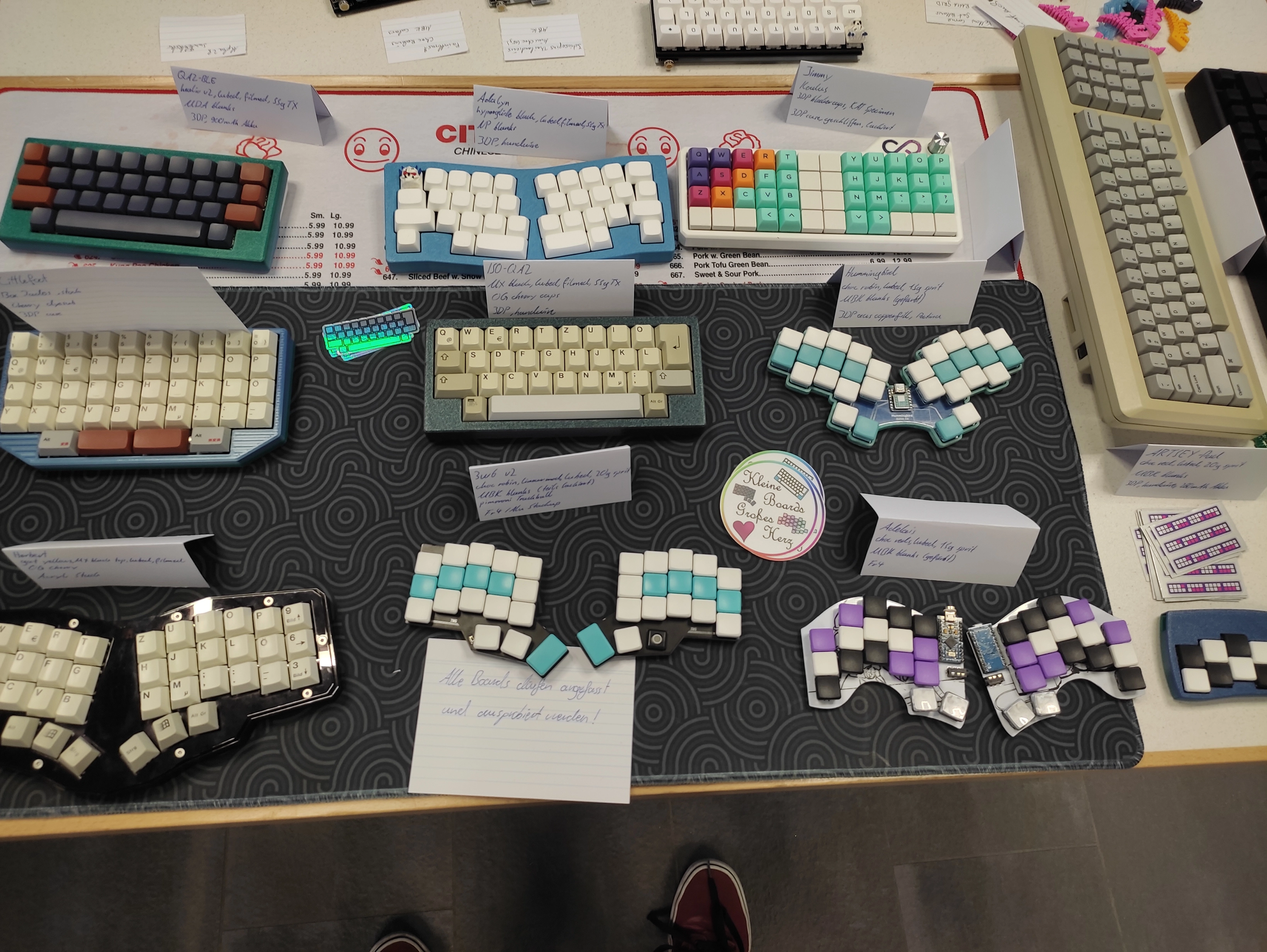
Why use small keyboards?
Keyboards come in different sizes. When you talk about keyboard sizes you talk about the number of keys. Most normal consumer keyboards are 104% (104 keys, it is common to add the %). Choosing another uncommon Keyboard size and customizing it to your needs can be great. A curated list for switching to a small keyboard:
- thekeeblog.com
- Introduction to Small Keyboards - Keeb Supply Docs
- λ ryan
- rob.rho.org.uk
- andy.teknostatik.co.uk
- franknoirot.co
If you are interested to try small keyboards.
If you are sold to get a
small keyboard you might beg the question "But how can I get a small
keyboard if only common sizes are being sold?". This Guide explains how to
build one yourself without a lot of cost.
Table of contents
What keyboard sizes are there and how to choose the 'correct' size? In the end there is no correct size and you just have to try and choose.
Parts
Keycaps
The keycaps are maybe the most important part. They contribute a lot for the look and feel of a keyboard. Here are some keycaps I've tried.
MBK
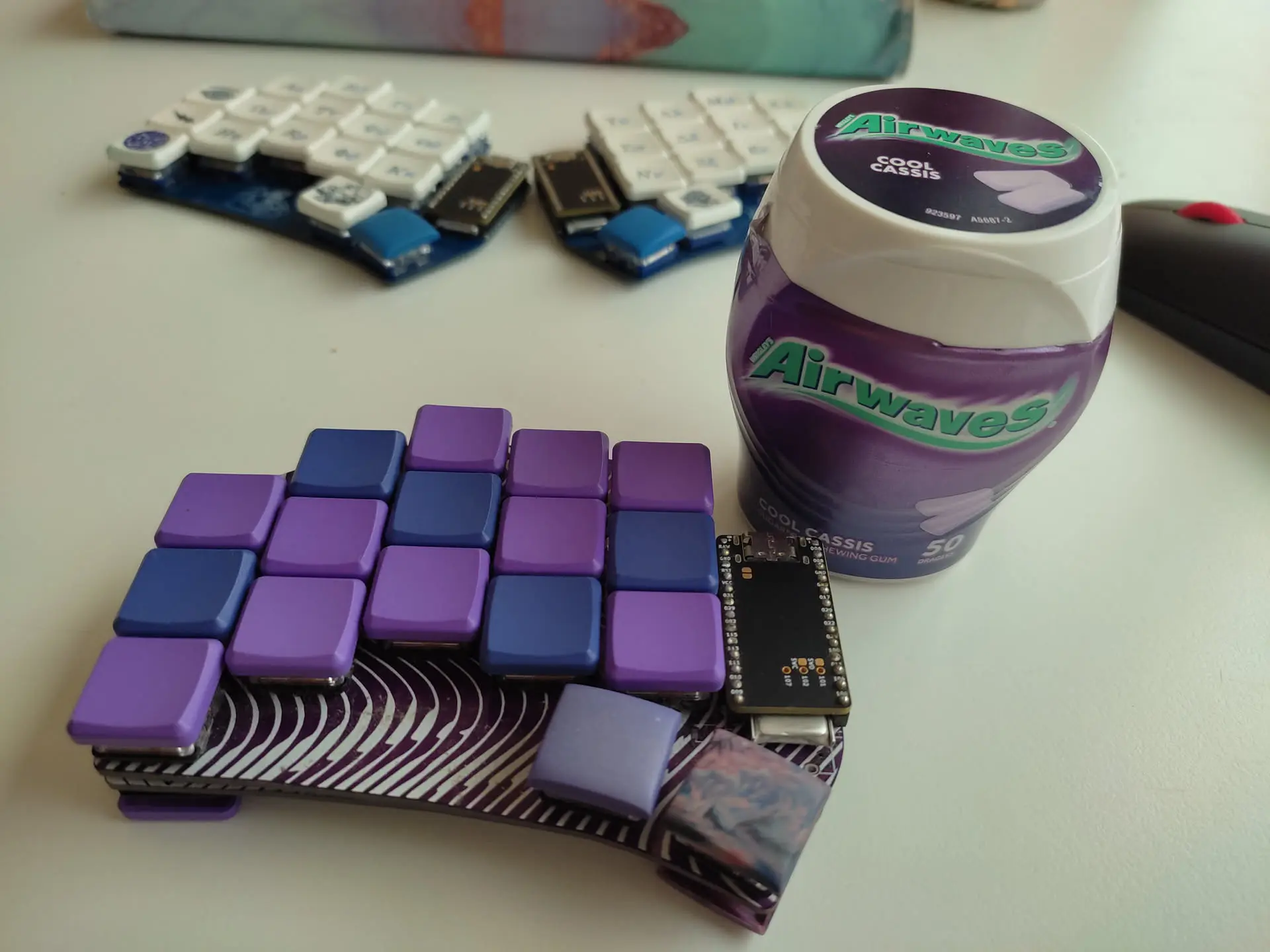 These keycaps are my favorite uniform keycaps for the choc v1. They feel great
and come in different colors. They are PBT and they have a textured top so they're
rather grippy. They are also not too expensive with ~4.5€/10PCS (blank white).
They also come with legends if you prefer this. Oddly the keycaps cannot be sourced
via Aliexpress or similar but they are available in several sources (fkcaps.com/). They also have homing keys (these are keys with little dots on the
center so one knows where the keys for the index fingers should rest). On
the right we can see the "violet" purple and "lavender" purple colored MBK
keycaps on one keyboard.
These keycaps are my favorite uniform keycaps for the choc v1. They feel great
and come in different colors. They are PBT and they have a textured top so they're
rather grippy. They are also not too expensive with ~4.5€/10PCS (blank white).
They also come with legends if you prefer this. Oddly the keycaps cannot be sourced
via Aliexpress or similar but they are available in several sources (fkcaps.com/). They also have homing keys (these are keys with little dots on the
center so one knows where the keys for the index fingers should rest). On
the right we can see the "violet" purple and "lavender" purple colored MBK
keycaps on one keyboard.
The Colored one might be a tad more expensive
(6.9€/10Pcs).
There are also crystal reflective one that are a
eyecatcher but they feel glossy and slippery (available on keycapsss.com/ 9€/10Pcs).
Chicago Steno
These are probably my most favorite keycaps. I'm talking about the Chicago
Steno by pseudoku. Each Keycap is in effect hugging the finger. The homerow
keys (that are the keys where the resting finger lay) are
horizontally/vertically symmetric, they have vertical grooves in them which
make the fingers feel securely in them.
The bottom and the top row
keycaps are similar to the homerow keys. They however are slanted to be more
perpendicular to the fingers when trying to press them. This makes
everything seem fitting.
The thumbs are also very interesting.
There are different keycaps pseudoku designed for the thumb cluster. In
the picture above of the purple keyboard we can see two thumb keycaps that
are convex. I actually prefer that they are sculpted in such a way that they
make a large indentation that is 2u long, so the right keycap is resembling
a right halfpipe, while the left is resembling a left. Due to the fact that
the purple/red artisan keycap is only available in this convex form factor I
had to make consequences.
Regarding on this note it would also maybe
would've been better to adjust the innermost column where the center key is
not part of the homerow to some degree to easy the effort of overcoming the
hill between the innermost and second innermost column.
Some words
about the texture and color:
elaborate on fdm and pla/pbt. and artisan.
Name: Chicago Steno
Specific Key: CS Bottom/Top
Compatible: Kailh Choc v1
Model by Pseudoku (github)
Grid Squares: 1mm unit each
Switches
The switches to actually actuate the keypress are usually mechanical, this means they have a spring in them which gets compressed before the key bottoms out. The springs have different strength and they are three main types of switches that categorize the feel of the switch. There are Blue switches that are clicking and are noisy. The forces that have to be applied to steadily press them down is not linear due to the mechanical guiding system of the switch. The "Red" switches are linear actuators, that mean they linearly require some force dependent on the distance traveled. They don't provide any visual/auditoral feedback when they actuate. The Brown switch is a tactile switch. Meaning it is not linear and the force of triggering a press is higher right before the press. After the actuation point the force/distance required to bottom out is decreasing again.
Kailh Choc V1
Kaihl Choc V1 switches are also known as PG1350.
These switches are known for their slim design, making them ideal for
portable wireless keyboards. They come in different variants. A list of the
variants can be seen
here. Because of their limited height they inherently provide less travel and
some may say a worse feeling.
The switches can be taken apart and lubed
with dedicated keyboard lube. They also can be tape modded. They are fairly
cheap and can be sourced form Aliexpress or similar. If we zoom into the
switch we can see that it is a blue switch and that a piece of metal gets
flug if we overcome the point of actuation.
Personally I do like the
red switches but everyone has to decide for themselves.
Name: Kailh Choc v1 Blue
Pre Travel: 1.5±0.5 mm
Total Travel: 3.0±0.5 mm
LED support: ✅
The way the switches are mounted is rather traditional. The switches don't
have the same spacing that the MX switches use (cherry standard is 19.05 mm
in the vertical and horizontal). The Choc spacing is 18mm in the horizontal
and 17mm in the vertical. This means that the keycaps have to occupy the
same spacing to remove any gaps. This in turn means the keycaps cannot be
rotational symmetric unlike the cherry ones. They stem is slow slits where
the keycap slides in rather nice.
In the following model a choc v1
switch mounted on a PCB is displayed. It can be noted that the two pins on
the top side of the switch belong to a led that can be put inside of the
switch.
Name: Kailh Choc v1
Pre Travel: 1.5±0.5 mm
Total Travel: 3.0±0.5 mm
LED support: ✅
PCB
Every Keyboard has a PCB which is a green slab of silicon that has traces of
copper to connect the components of a keyboard to allow functionality. Most
of the time it is green rigid (not for a Dactyl Manuform type keyboard) with
a thickness of 1.6mm. Some curated list of open source keyboards:
Nevertheless to really discover the keyboards one has to lurk in discord or visit the sub of r/ergomechboards or similar to really get inspired. Also talking to people and going to meetups helps a lot.
My absolute favorite for the past couple of year is the
Sweep.
It is a 34 key split keyboard with no features really. Simplicity. Almost
all keyboards also provide their source so you can just open the project
with the proper app (here KiCad) and modify it if needed. Sometimes (like
here with the sweep) they also include the compiled gerber files (files that
you can give the manufacturer to produce the PCB) in the
release page.
Why would I need to modify the PCB.
You don't but you
can. There are some advantages.
- personal silkscreen (colorful pictures or popart)
- some keyboards are designed to have trrs wires in between them. If you know you'll use bluetooth you can remove unneeded parts
- removing of mounting if no tenting/mounting is intended
- you can make a new keyboard but base it on the project
Price of Manufacture
The price of manufacturers differs depending on the size and requirements of
the PCB. So far I would say that you cannot go wrong with
JLCPCB.
You want to
have some number: The price for 5Pcbs is round 20-30€ but keep in mind this
is for a small keyboard.
Case
People would say that a case is mandatory for a keyboard. I disagree. As
you've seen earlier in section MKB you can build keyboards without a case.
The structural integrity of the PCB is more than enough that the keyboard
feels and is sturdy. In all those years nothing every happened to the
keyboards except some switches breaking when the keyboard falls on the
ground. But a case can contribute to the look and feel of the keyboard. For
example the background image of this page is my self made 5column Corne with
an cast acrylic case. Next to it is a 2% milk (just a milk carton with two
buttons). The acrylic sandwich is the eye-catcher of this corner, even
though it also has really nice switches.
In the keyboard community it
important to have a nice case. CNCed metal with a nice engraving in the back
is highly regarded one of the best cases.
Pin Headers/ Pin Sockets
For the pins headers we can repurpose LED strip pin headers. They have the
correct size and don't cost anything. I used to buy specialized keyboard pin
headers but they don't bring any benefit.
Why do we want pin pin
sockets? Why don't we just solder the pins to the controller and into the
PCB?
Sure we could do that but we have the space (the battery is
usually under the MCU) to make the decision to use pins and sockets to later
allow the controller to be hot swappable. In case the controller breaks we
can solder pins to a new one and plug it in. The sockets and pins don't add
a lot to the cost. The sockets are spring loaded that means no screwing and
just placing it in there once.
Battery
If the keyboard is intended to be used wirelessly then a battery is
mandatory. Usually the battery is under the MCU and has the following
dimensions. 32mm x 12mm x 4mm. The model of such batteries are 301230 and
they often have a capacity of 80-110mAh. The battery life of wireless
keyboard running zmk is usually several months. There are also coin battery,
solar and AAAA battery powered keyboard but they are rare because 3.7v lipo
batteries are so good and they prove easier to charge. Virtually all
wireless keyboard controllers have a lipo battery charger integrated.
For a rough estimate on Battery life with ZMK see Battery Profiler and choose nice!nanov2.
Where to source lipo batteries?
Batteries can be bought from Aliexpress. The shipping is horrendous
expensive and takes a long time. I would recommend buying several batteries.
Maybe 5€/Battery can be calculated. The Capacity of the batteries cannot be
trusted. There is just no other choice.
Software
The software (firmware in the case of keyboards) is very important for customizing the keymap. There are many different keyboard firmwares available. A list can be seen here. The takeaway should be if you go with a wireless keyboard go for ZMK. If you go wired you can also go for QMK.
ZMK
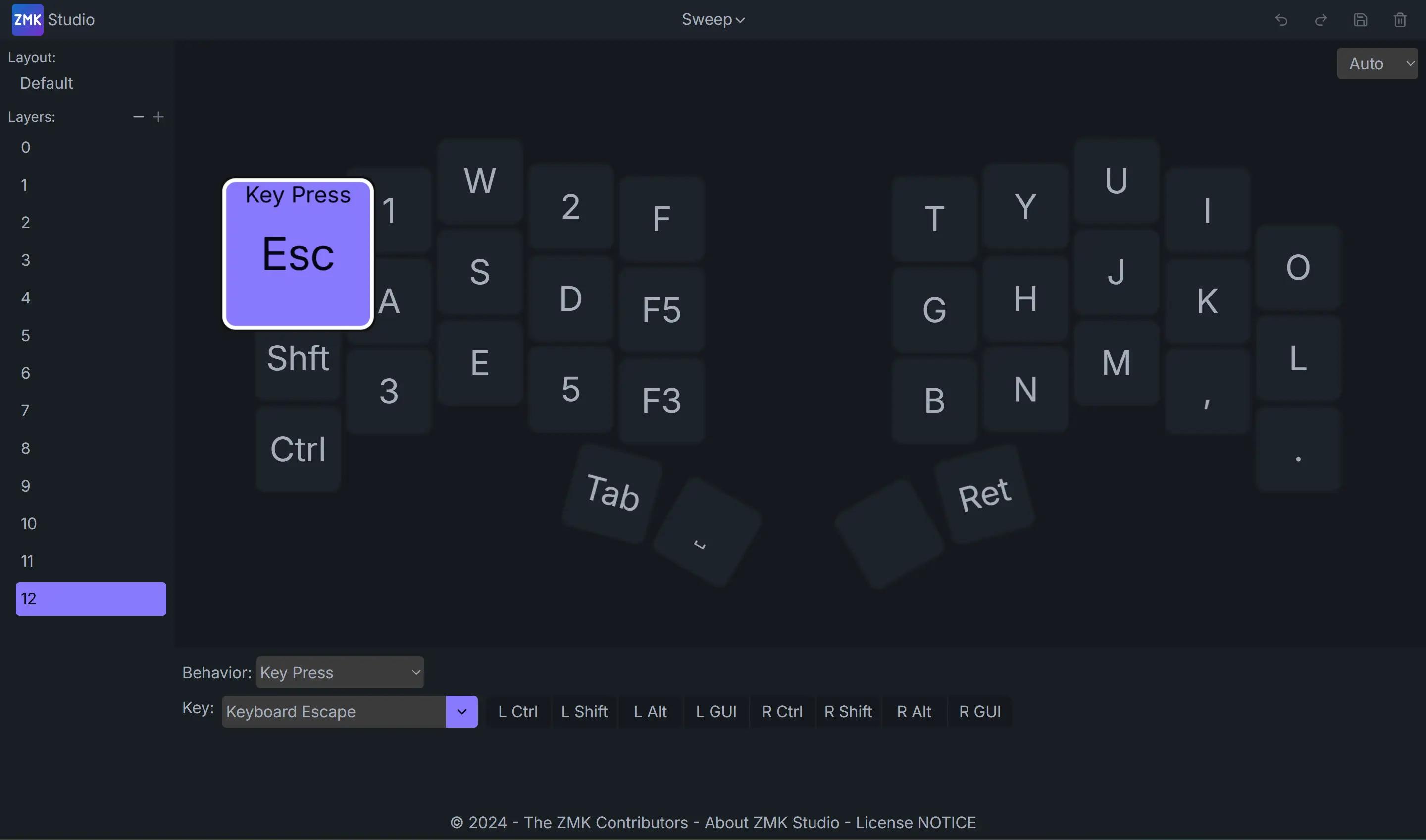 ZMK is a wireless first keyboard firmware. The use guide is easy to understand
and it has a wide compatibility (basically any ARM chip). ZMK has a lot of tools like a Battery Profiler to estimate the battery life of a given keyboard. Usually you can keep using
your key months before you have to charge.
ZMK is a wireless first keyboard firmware. The use guide is easy to understand
and it has a wide compatibility (basically any ARM chip). ZMK has a lot of tools like a Battery Profiler to estimate the battery life of a given keyboard. Usually you can keep using
your key months before you have to charge.The community constanty pushes out features. It is completely open source.
No code is actually needed to setup a keyboard with the new zmk.Studio. Of course zmk has everything you would need like mouse support, macros, mod morphs and much more.
Get started with ZMK you'll just need a Github account and a few minutes!
Keymap
Alt Layouts
This is stale information. Check out my yt video on it. My like up to date keymap is Here I've tried to talk about why to not use tradition QWERTY on my blog (notes.lucacordes) but there are better sources like unkel.io and many more.
As an example of a keymap I'd recommend visiting
KeymapDB to get
inspired from. But in the end it is a process that takes to grow your keymap
naturally. I'm currently using Colemake DH. But there are so much more better ones than QWERTY so please consider
switching. A list to some: kinesis-ergo (mainstream alt layouts), list alt laytous on getreuer.info, His Guide Is Very Good.
cyanophage.github.io is sooo good to compare layouts! For example in the source of
getreuer.info we can see that apparently Focal does very good and has little
SFB (same finger biagram (two consecutive presses with the same finger)) and
thus is seems very good. If we use the comparison tool and compare colemake dh
(Effort 535.05) to Focal (Effort 537.85) we can see the effort is the same.
Always use different compare tools and adjust the effort per key with personal
tendencies in mind. In the end it does not really matter compared to QWERTY
which has a huge effort (1258.34) and is inferior to almost all other keymaps.
I personally use the popular Colemake DH (2014).
If you really want to
dive deep in to the rabbit hole look at stenography.
My layout
This is my personal opinion. I don't think the keyboard layout matters too
much. I would not put letters on the thumb, I'm file with space and shift on
the thumb that's already enough for me. In fact I only use one of the right
thumb keys.
If you are interested you can look at the image on the
right to see my personal keymap (see XML drawio graphics,code for Keymap on Github). I only type English but it can be useful to be able to type on other
peoples devices with other input methods. This requires some configuring which
I did.
I recommend to go with US International as a input
method. Dead keys or no dead keys does not matter as long as we define the
macros for the keycodes properly. Example for ' (Single Quote/Apostrophe) I
use a macro that types Single Quote plus space afterwards. Ä is " double
quotes plus A and so on. If you want it simple just stick with US layout.
Some Recommendations:
Break free of the shifted symbols. If you
have a dedicated key to do the parenthesis you don't need Shift(9) to produce
(. My Shift(9) produces ? instead and Shift(8) is #. My Shift(3) is not # but
it generates '.
Cost
Some people might not care too much about the cost of their keyboard. It'll be
around for years and important especially if you work in an office. I'll
provide a real world example of a keyboard and the price to build it.
Economical tip: Look on Aliexpress first before sourcing from local shops.
| Name | Price[€] |
|---|---|
| Batteries | 10 |
| PCB | 25 |
| Keycaps | 20 |
| Solder Equipment | 50 |
| Solder Material | 2 |
| MCU | 7 |
| Switches | 30 |
| Sockets/Pins | 5 |
Assuming you have some soldering hardware you can expect to build a keyboard for less than 100€. Some prices change. The controllers used to be 30€ each now they are actually less than 5€ per MCU. MBK keycaps are manufractured less and prices have risen. This table is just giving a rough estimate and it is not timeless so take it with a grain of salt and just do your own research. Leave an anonymous comment and let me know your thoughts.